Navigraph Setup Guide: Charts, Navdata, and SimBrief for MSFS and X-Plane
A step-by-step guide to setting up Navigraph for your flight simulator — from installing navdata to using charts and SimBrief for realistic IFR flying.
If you fly IFR in any flight simulator, Navigraph is probably the single most important tool in your toolkit. It keeps your navigation data current, gives you real-world charts, and integrates with SimBrief for flight planning. Here's how to set it all up.
What Is Navigraph?
Navigraph provides three core services:
- Navdata — keeps your FMS procedures (SIDs, STARs, approaches, waypoints) aligned with the real world, updated every 28 days
- Charts — Jeppesen-sourced approach plates, airport diagrams, and departure/arrival charts
- SimBrief integration — professional-grade flight planning with fuel calculations, route optimisation, and weather
Step 1: Create an Account
Head to navigraph.com and sign up. The Unlimited subscription ($8.29/month) includes everything — navdata, charts, and SimBrief. SimBrief basic is free even without a subscription.
Step 2: Install Navdata
For MSFS 2020/2024
- Download Navigraph Hub from the Navigraph website
- Sign in with your account
- Hub auto-detects MSFS — click Install next to MSFS Navdata
- The in-game panel also installs automatically
For X-Plane 12
- Download FMS Data Manager from Navigraph
- Sign in and select X-Plane 12
- Click Install/Update to sync navdata
- For in-sim charts, install the Navigraph Charts plugin
Step 3: Set Up SimBrief
- Go to simbrief.com and log in with your Navigraph account
- Create a flight plan:
- Enter departure and arrival airports
- Select your aircraft type
- Choose a route (SimBrief suggests optimised routes)
- Set passenger/cargo load
- Generate the OFP (Operational Flight Plan)
- The flight plan is now available in your sim's FMS via the Navigraph integration
Importing into Aircraft
Most modern payware aircraft support direct SimBrief import:
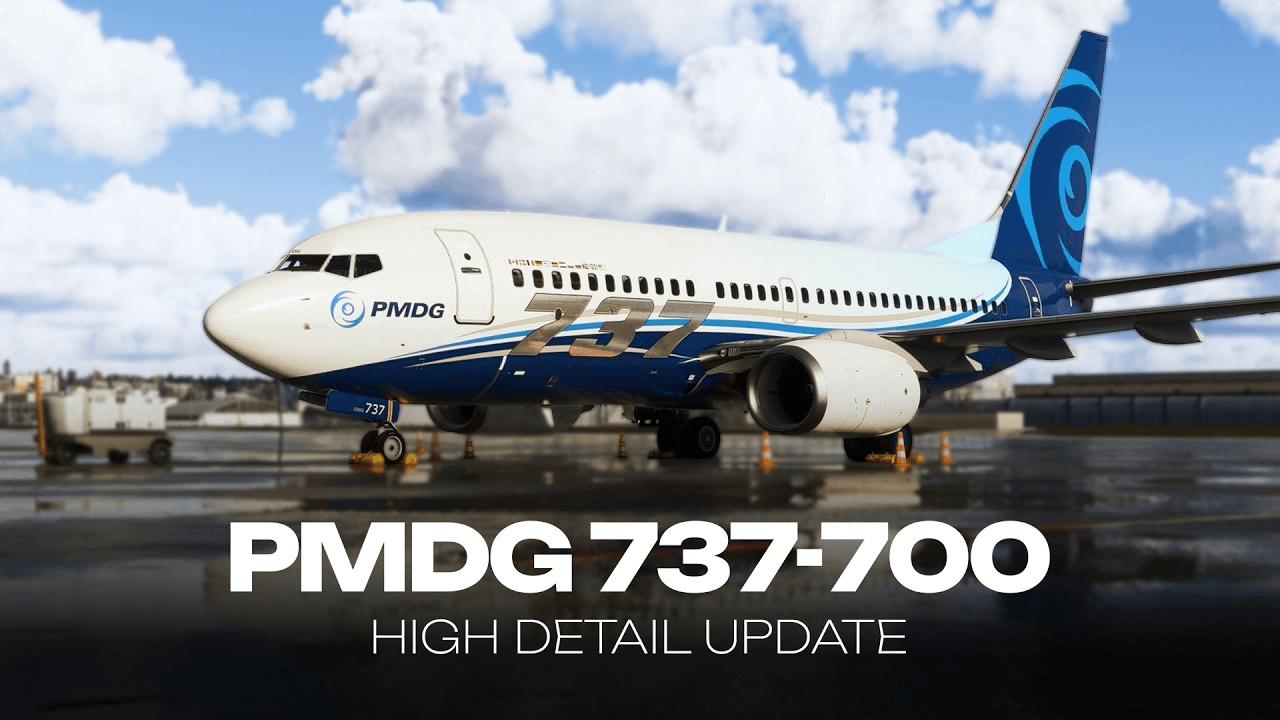
- PMDG 737/777: Via the EFB, tap SimBrief import
- FlyByWire A320: Through the flyPad EFB
- Fenix A320: Built-in SimBrief integration
- X-Crafts ERJ: Via the EFB SimBrief page
Step 4: Using Charts In-Flight
MSFS In-Game Panel
The Navigraph Charts panel appears in the toolbar. You can:
- View approach plates while flying
- See your aircraft position on airport diagrams
- Switch between en-route charts and terminal procedures
- Use the new Scratchpads feature for notes and clearances
Standalone App
The Charts app also works as a standalone window on a second monitor or tablet — perfect for a multi-screen setup.
Step 5: Navigraph Academy (Free)
Navigraph recently launched Navigraph Academy — a free virtual flight school with structured courses taught by professional pilots. The Virtual Private Pilot License (VPPL) course covers:
- Aviation theory (aerodynamics, navigation, airspace)
- Practical in-sim missions
- Quizzes and progress tracking
- A digital certificate on completion
No subscription required — just a free Navigraph account.
Tips
- Update navdata every AIRAC cycle (every 28 days) to stay current
- Always match your navdata to your charts — using outdated navdata with current charts can cause procedure mismatches
- Save frequently used routes in SimBrief for quick access
- Use the moving map feature during taxi to navigate complex airports
Navigraph transforms flight simulation from casual flying into something that closely mirrors real-world operations. If you're serious about IFR flying, it's worth every penny.